
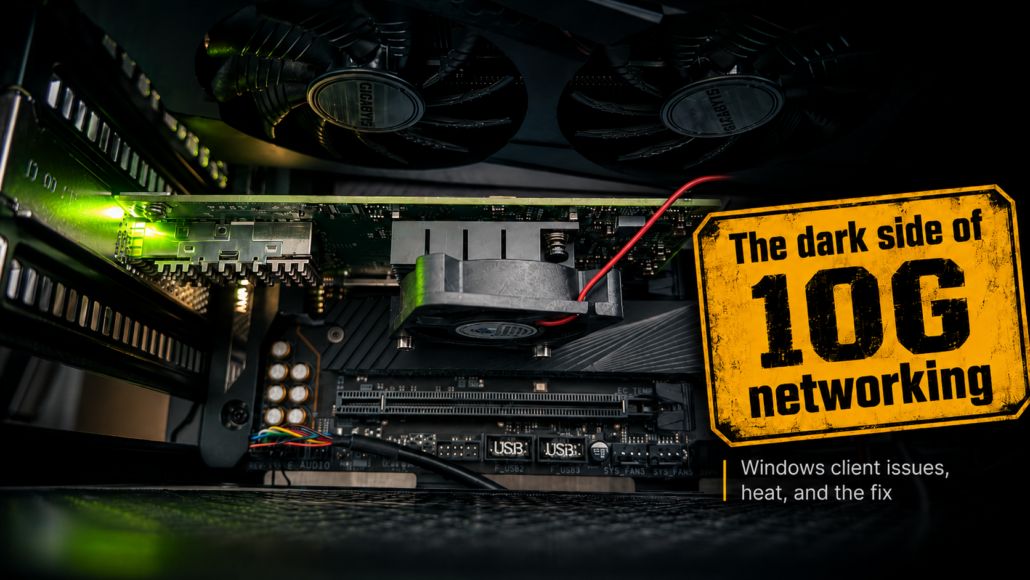
10-Gigabit Network: The Windows Side – Problems and Solutions
A 10 Gigabit network sounds simple on paper: install a suitable network card, connect an SFP+ module or DAC cable, attach it to the switch, install the driver – done.
In practice, however, the weak point is often not the server, the NAS, or the switch. The real problem can be the Windows client.
In my case, the 10 Gigabit link basically worked. The switch was stable, TrueNAS was able to deliver 10 Gbit/s, and the cabling was not the issue. Still, the Windows side showed instability, system freezes, and uncertainty around the network card being used. In the end, the solution was a different card, targeted cooling, and proper temperature monitoring.
The Setup: 10 Gbit/s in a Home Lab Network
The goal was a fast internal network for large amounts of data:
- working directly with files on the NAS
- large file transfers
- backups
- video and project data
- a stable connection between Windows PC, switch, and TrueNAS
The core infrastructure consisted of:
- a Windows 11 PC as the workstation
- a TrueNAS system as storage
- a 10 Gigabit SFP+ switch
- an SFP+ network card in the Windows PC
- a 10 Gigabit connection via SFP+ fiber/transceiver or a suitable direct connection
On paper, everything looked right. In reality, however, 10 Gbit/s is not just about the raw link speed. PCIe slot behavior, drivers, the network card itself, temperature, airflow, and Windows behavior all matter.
What Problems Occurred?
1. Instability with the first network card
The first Intel SFP+ card caused problems in the Windows PC. There were system freezes and general instability. In another system or environment, the same type of card could behave much more normally.
This is an important point: a network card can technically work and still cause problems in one specific desktop PC.
Possible causes include:
- driver issues
- PCIe compatibility problems
- BIOS or UEFI settings
- power saving features
- PCIe slot wiring or lane configuration
- thermal issues
- poor airflow inside a desktop case
Used server network cards are often not designed with normal desktop cases in mind. They usually come from servers with strong, directed airflow. In a tower PC, that airflow is often missing.
2. Passive server cards can get hot in desktop PCs
Many 10 Gigabit SFP+ cards are passively cooled. In a server rack, this is usually fine because multiple chassis fans constantly push air through the system.
In a desktop PC, the situation is different. The card often sits below the graphics card, close to a PSU shroud, or next to other components. The small heatsink on the network card may receive some ambient airflow, but usually no targeted airflow.
This can work – but it does not have to.
The key lesson: with 10 Gigabit cards, do not guess the temperature. Measure it.
3. Windows does not show the card temperature by default
The card temperature is often not visible in Device Manager or common monitoring tools. The card can get hot without Windows clearly showing it.
With Mellanox/NVIDIA cards, however, the temperature can be read using the Mellanox Firmware Tools. In my case, the card was detected with mst status and then checked using mget_temp.
Example:
mst status
mget_temp -d mt4117_pciconf0
The output was a simple number, for example:
43This means 43 °C.
4. BIOS fan sources do not read the Mellanox card directly
The ASUS motherboard offered several sensor sources for fan control, including CPU, System, PCIEX16, and PCIEX8.
Important: these PCIEX sensors do not read the internal temperature of the Mellanox card. They are most likely motherboard sensors located near the PCIe slots. They can be useful as a rough ambient temperature reference, but they do not replace the real card temperature reported by mget_temp.
They can still be useful for a fan curve, but it is important to understand what is actually being measured.
5. A 2-wire 12 V fan has no tachometer signal
For cooling, a small 40 mm 12 V fan was mounted directly onto the heatsink of the Mellanox card. The fan only had two wires:
- Red: +12 V
- Black: GND
No tachometer signal. No PWM.
This still works on a normal ASUS CHA_FAN header if the header is set to DC mode in the BIOS. In DC mode, the motherboard controls the fan speed by changing the voltage. The downside: the motherboard does not know whether the fan is actually spinning. It will typically show 0 RPM or N/A.
Therefore, the fan monitoring for this header has to be set to “Ignore” or “Low Limit Ignore”.
The Solution
1. Switching to a Mellanox/ConnectX card
The Intel card was no longer treated as the only possible solution. Instead, a Mellanox/ConnectX card was installed.
The advantage: solid server-grade hardware, a good driver base, and with the Mellanox Firmware Tools, a useful way to inspect the card’s status.
The card was detected under Windows using MFT:
mst statusExample output:
MST devices:
------------
mt4117_pciconf0
After that, the temperature could be read:
mget_temp -d mt4117_pciconf02. Active cooling directly on the heatsink
A 40 mm fan was mounted on the existing heatsink of the card. The fan was screwed directly onto the heatsink so that air was pushed directly across the fins.
This is not an elegant manufacturer-designed solution, but it is a very effective practical fix.
Important points for this kind of modification:
- screws must not reach down to the PCB
- no contact with traces or SMD components
- the fan must not press against components
- cables must be kept away from the rotor
- the heatsink must not be twisted or lifted from the chip
- a cold boot test should be performed after installation
The fan was powered from a motherboard fan header.
BIOS settings:
CHA_FAN
Mode: DC
Fan Speed Low Limit: Ignore
Source: PCIEX16 or PCIEX8, depending on slot position
A Noctua Low-Noise Adapter was also used to reduce fan noise. These adapters essentially work by adding resistance, reducing the effective voltage/current and therefore lowering fan speed. The important point is that the fan must still start reliably during a cold boot.
3. Temperature testing with mget_temp
The card temperature was checked several times.
Open case:
43 °CClosed case:
45 °CThis confirmed that the sensor was reporting plausible values. The temperature rose slightly when the case was closed, but remained stable in a very good range.
4. Load testing with iperf3
A longer iperf3 test was used to verify the connection. The link ran for several minutes at around:
9.46–9.49 Gbit/sAfter roughly 465 seconds, more than 500 GBytes had been transferred. The Mellanox card temperature remained around:
45 °CThis is a very good result. With poor airflow, a stronger temperature increase would normally be expected after several minutes of continuous 10 Gigabit traffic.
What Can Be Learned from This?
1. 10 Gbit/s needs more than just the right card
Installing a 10 Gigabit network card is not enough. The whole system has to be considered:
- PCIe connectivity
- drivers
- Windows power settings
- BIOS settings
- switch
- SFP+ modules
- cables
- temperature
- airflow
- real load testing
Desktop PCs are not automatically ideal environments for passive server network cards.
2. Server hardware often needs server-style airflow
Many SFP+ cards are passively cooled because they are designed for chassis with constant airflow. In a normal PC case, a small targeted fan can make a big difference.
A 40 mm fan directly on the heatsink is not beautiful, but it is effective. An even better final solution would be a 3D-printed air duct that guides airflow across the main heatsink and further over the SFP+ cage.
Possible improved final solution:
- 40 mm axial fan with a shroud
- small radial blower fan
- airflow directed toward the SFP+ port and slot bracket
- PETG or ASA 3D-printed part instead of PLA for long-term use
3. Do not just touch the heatsink – measure the temperature
Touching the heatsink with a finger gives a rough impression, but it is not a measurement.
For Mellanox/NVIDIA cards, mget_temp is very useful:
mget_temp -d mt4117_pciconf0This shows whether the card is really getting too hot or whether the cooling is sufficient.
4. iperf3 is mandatory
File copies are only partially useful as network tests. They depend on many factors:
- SMB
- storage performance
- RAM cache
- CPU
- antivirus software
- file size
- NAS performance
- protocol overhead
For a clean network test, iperf3 is much better. Only after iperf3 delivers stable 9–10 Gbit/s does it make sense to further optimize SMB, NAS storage, and Windows file copies.
5. SMB is a separate topic
If iperf3 works properly but file copies do not reach the expected speed, the problem is probably no longer the physical 10 Gigabit connection.
Then the following areas should be checked:
- SMB Multichannel
- SMB Direct/RDMA, if available
- driver offloads
- RSS
- Jumbo Frames, but only if configured consistently end-to-end
- NAS storage performance
- Windows cache behavior
- antivirus software
- CPU load on NAS and client
Recommended Approach for Stable 10 Gbit/s on Windows
For a stable 10 Gigabit setup on the Windows side, I would now proceed as follows:
- Use a proven SFP+ card, for example Mellanox/ConnectX.
- Install the card in a suitable PCIe slot.
- Install current and compatible drivers.
- Install the Mellanox Firmware Tools.
- Check the card with
mst status. - Read the temperature with
mget_temp. - If the card is passively cooled, create targeted airflow.
- Run the fan from a CHA_FAN header in DC mode.
- Disable the fan low limit if there is no tachometer signal.
- Run at least 10 minutes of iperf3 load testing.
- Monitor the temperature during the test.
- Only then continue optimizing SMB and NAS performance.
Example: Stable Final State
After the modification, the result looked like this:
- Windows PC with Mellanox SFP+ card
- small 40 mm fan directly on the heatsink
- fan reduced and quiet
- case closed
- iperf3 stable at around 9.49 Gbit/s
- Mellanox temperature stable at around 45 °C
This confirmed that the Windows client side was stable, the card was sufficiently cooled, and the 10 Gigabit connection was technically working properly.
Conclusion
10 Gbit/s in a home network or home lab is absolutely achievable. But the Windows client side should not be underestimated.
The most important lesson from this setup: the problem was not simply “10G does not work”. It was a combination of hardware, drivers, desktop airflow, and missing temperature visibility.
With a stable Mellanox card, targeted cooling, and proper testing using iperf3, the connection runs reliably at almost full 10 Gigabit speed.
The real lesson: with 10 Gbit/s, you have to work systematically. First stabilize the link and temperature. Then measure throughput. Only after that should SMB and storage performance be optimized.
Anyone who simply installs a used server card into a Windows PC and hopes everything will remain stable might get lucky. The better approach is: measure, cool, test – and only then optimize.


Leave a Reply
Want to join the discussion?Feel free to contribute!